
Excalidraw MCP: draw diagrams from Claude Code and Codex
Excalidraw MCP servers compared: the official app, the live canvas server with Claude Code and Codex install commands, and diagrams built into Starkomand.
An Excalidraw MCP server lets an AI agent draw hand-drawn diagrams from a prompt: architecture, flows, whatever you would otherwise sketch by hand. The server you want depends on where you run your agent. The official one renders inside chat apps, while a terminal agent such as Claude Code or Codex is better served by a server with its own canvas.
I read both READMEs on 3 November 2026, called the official server directly to see what comes back, and confirmed the second package on npm. I did not run the second server for this post. I build Starkomand, a Mac app for running coding agents on one canvas, which has diagrams built in, so treat that part as the view of its author.
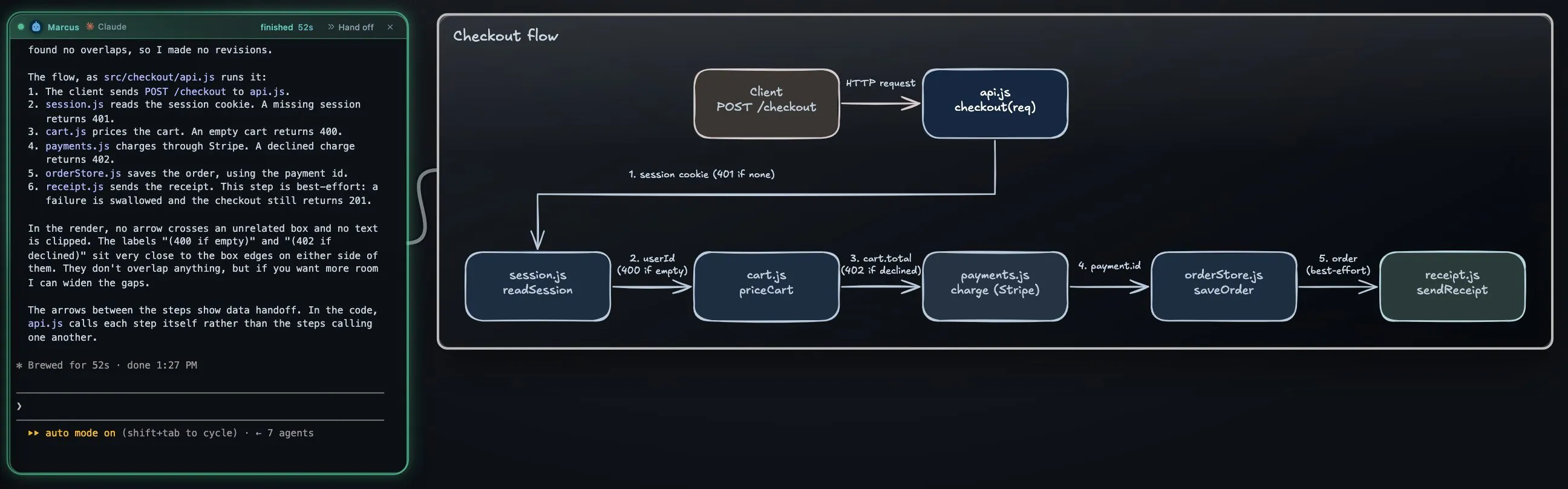
Claude Code drew this after reading a small demo project. It used Starkomand's built-in diagram tool, not one of the servers compared below.
Which Excalidraw MCP server should you use?
| Official excalidraw-mcp | mcp_excalidraw | Starkomand | |
|---|---|---|---|
| Best for | Claude Desktop and other chat apps | Claude Code and Codex in any terminal | Agents already on the Starkomand canvas |
| Setup | Remote URL, or a .mcpb for Claude Desktop |
One npx command |
None |
| Where you see it | In the client, if it supports MCP Apps | A browser tab | Beside the agent, on the canvas |
| Keeping the diagram | Share link through excalidraw.com | Saves into your repo, per its README | Stays on the canvas |
| Price | Free, MIT | Free, MIT | Paid app, 3-day trial |
How do I use the official Excalidraw MCP server?
The official server runs at https://mcp.excalidraw.com/mcp. It is an MCP App, which means the client draws the diagram in its own interface. Its README names Claude, ChatGPT, VS Code and Goose as clients. For Claude Desktop you can also download excalidraw-mcp-app.mcpb from the releases page and double-click it.
You can add it to a terminal agent:
claude mcp add --transport http excalidraw https://mcp.excalidraw.com/mcp
codex mcp add excalidraw --url https://mcp.excalidraw.com/mcp
The catch is that a terminal has nowhere to show the widget. When I called it directly, the server listed five tools: read_me, create_view, export_to_excalidraw, save_checkpoint and read_checkpoint. create_view answered "Diagram displayed!" with a checkpoint ID and text only, no image, because the picture is the client's job.
So from a plain terminal you would use export_to_excalidraw, which uploads the diagram to excalidraw.com and returns a share link. Keep that in mind before you draw private architecture.
How do I add Excalidraw MCP to Claude Code and Codex?
For a terminal agent, the mcp_excalidraw server is the closer fit. It runs a live Excalidraw canvas on your Mac that you watch in a browser tab while the agent draws. Add it with:
claude mcp add excalidraw --scope user -- npx -y mcp-excalidraw-server
codex mcp add excalidraw -- npx -y mcp-excalidraw-server
The first command is from its README. The second is the same server in the form codex mcp add --help documents. You need Node 20 or later.
What to expect, according to the README:
- The canvas starts itself. Since v1.1 it starts when needed. Set
EXCALIDRAW_NO_AUTOSTART=1to opt out. - It listens on
http://127.0.0.1:3000. That is also the default port of many dev servers, so setPORTin the server's environment if yours is taken. If something is already sitting there, here is how to find and kill what holds port 3000. - It has 26 tools. They let the agent create, edit, view and export diagrams, and save them into your repo.
- There is a skill too.
npx -y mcp-excalidraw-server install-skillinstalls one to~/.claude/skills. - Mermaid conversion needs an open tab. It is the one feature that needs the browser open.
What should I ask for?
An agent with no limit tends to draw too much, so give it one. Here is a starting prompt:
Read src/checkout/ and draw the checkout flow as an Excalidraw diagram.
Use at most eight boxes and label every arrow. Then look at the result
and fix anything that overlaps.
The last sentence matters most. An agent that can see its own rendering can catch arrows crossing labels, and one that cannot has no way to know. When I ran a version of this prompt for the screenshots here, one Claude Code run looked at its render, reported "two defects to fix", a label touching its border and a caption crowding an arrow, and went back to revise them. The Excalidraw Diagram Skill on GitHub builds a workflow around that loop: design it, render it, look at it, fix it.
How do diagrams work in Starkomand?
Starkomand needs no server. Every agent launched on the canvas already has a draw_diagram tool and a read_diagram tool. Claude Code and Codex get them through launch flags, so your own MCP config stays as it is. The same tools reach Cursor, Grok, GLM, OpenCode, Gemini, Copilot, Amp and Goose. Pi and Aider reach the same tools through a small command, and in Aider each command needs your confirmation.
So you ask in plain words, in the agent's own window: "Draw the checkout architecture."
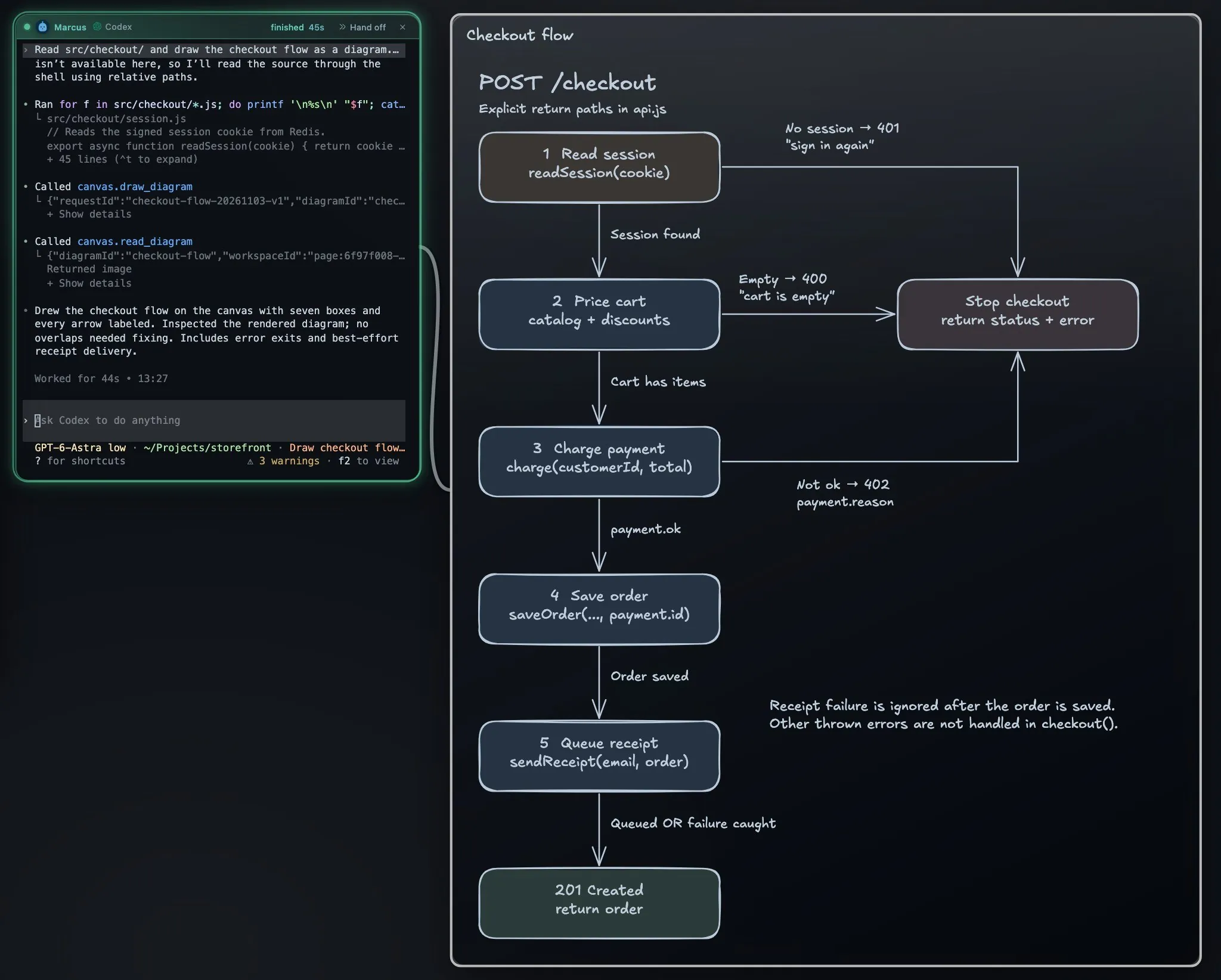
Codex with the same demo project and prompt. draw_diagram drew it, and read_diagram returned an image for Codex to check.
The diagram lands beside the agent that drew it, with a line back to its window so you can tell who made what. Shapes and text stay editable. read_diagram gives the agent a rendering of what it drew, so it can revise the same diagram. A revision based on an out-of-date copy is refused, so an agent has to read the diagram again and cannot overwrite your manual edit by accident. Because the agent comes with a built-in diagram skill, you do not need to teach it the format.
There are real limits. These tools draw only on the Starkomand canvas, so they are not a server you can point another app at. A diagram stays on the canvas, not as a .excalidraw file in your repo, and if you want one committed next to your code, mcp_excalidraw does that. Starkomand is also a paid app for Apple silicon Macs. If all you want is the occasional diagram from Claude Code, the free server is the better answer.
The Starkomand features in this walkthrough
- See the system before the code, with agent-drawn diagrams.
- Claude Code, Codex and other CLI agents with your own sign-ins.
- Answers on running agents together.
More walkthroughs: why I put coding agents on an infinite canvas, and the best terminal for Claude Code on a Mac.
To have your own agents draw on the canvas, start the 3-day trial of Starkomand. It includes every feature, and your agents keep using the subscriptions you already have.