
Why I put AI coding agents on an infinite canvas
An infinite canvas for AI coding agents keeps the issue, diagram, preview and reviewer beside the terminal. Why I built Starkomand that way.
A coding agent says it has finished. You open the app to check the result, go back to the issue to reread a requirement, then return to the conversation to understand a decision. You ask a second agent to review the change. Soon one task has become several windows, and keeping track of how they fit together is your job.
That is the problem I built Starkomand around: an infinite canvas for AI coding agents. Real agent terminals, such as Claude Code and Codex, sit on one canvas beside the issue they are working on, the diagram they drew and the page they built. I'm building it as a solo developer, and this post explains the decision, including the parts a canvas makes harder.
The agents are the command-line tools you already use, signed in as you. My work is the workspace around them.
What does one coding task need in view?
To show the idea, I use a scripted demo with a small bug: an orders page loses its status filter when you go to page 2. The terminal output, the issue and the orders page below were prepared for this walkthrough. They show how the pieces fit together; they are not a record of a real customer task.
Four things matter for that bug, and each answers a different question.
- The issue says what was requested. In Starkomand, pull a GitHub issue onto the canvas as a note and drop it on an agent window: the agent is told to work that issue and to read it, comments included, with
gh issue viewin its own shell. The note clips to the window's corner and follows it, so the canvas shows who has the ticket. - The diagram says what caused the problem. Ask the agent to draw it, and it calls the canvas tool
draw_diagram. The diagram lands beside its terminal as hand-drawn shapes you can edit. - The preview shows what the user actually sees. The agent calls
open_browser, and the page opens in a browser window on the canvas. - The conversation explains the decisions. It stays in the agent's own terminal.
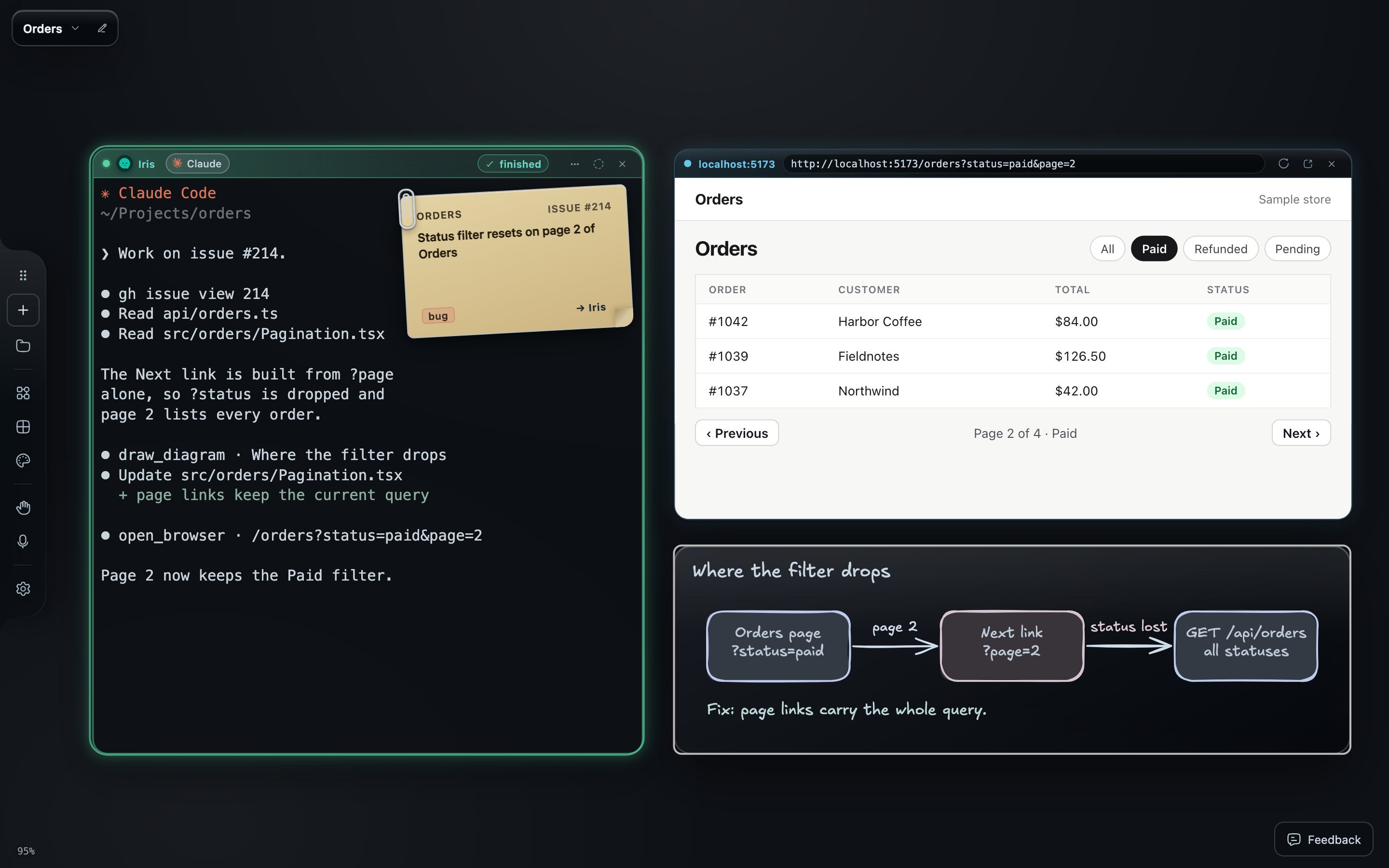
Captured from the app with scripted terminal output. Iris is a Claude Code session; the issue, file names and orders page are illustrative.
With all four in view, I can compare the request, the explanation and the result without rebuilding them from memory. That is the benefit I am designing for: the things you need to judge a change stay close together.
How does the canvas show which things belong together?
A list of sessions tells you which conversations exist. A canvas can also show which things belong together, because position carries meaning. Put a reviewer beside the agent whose work it checks. Keep a question near the work it is blocking. Give another feature its own area.
Starkomand keeps those relationships when you rearrange things:
- Origin lines. Every diagram, preview and pinned note an agent makes through the canvas tools remembers the agent that asked for it, and a line connects the two. The line rests unseen and appears when you hover, select or drag either end. If a connection is wrong, delete the line and it stays gone.
- Clipped issue notes. A dropped note moves with the window it was dropped on.
- Handoff wires. When you pass work on with Agent actions → Hand off…, the receiving agent's window is wired to the one that handed it over, with the brief on the wire. The wire shows who works for whom.
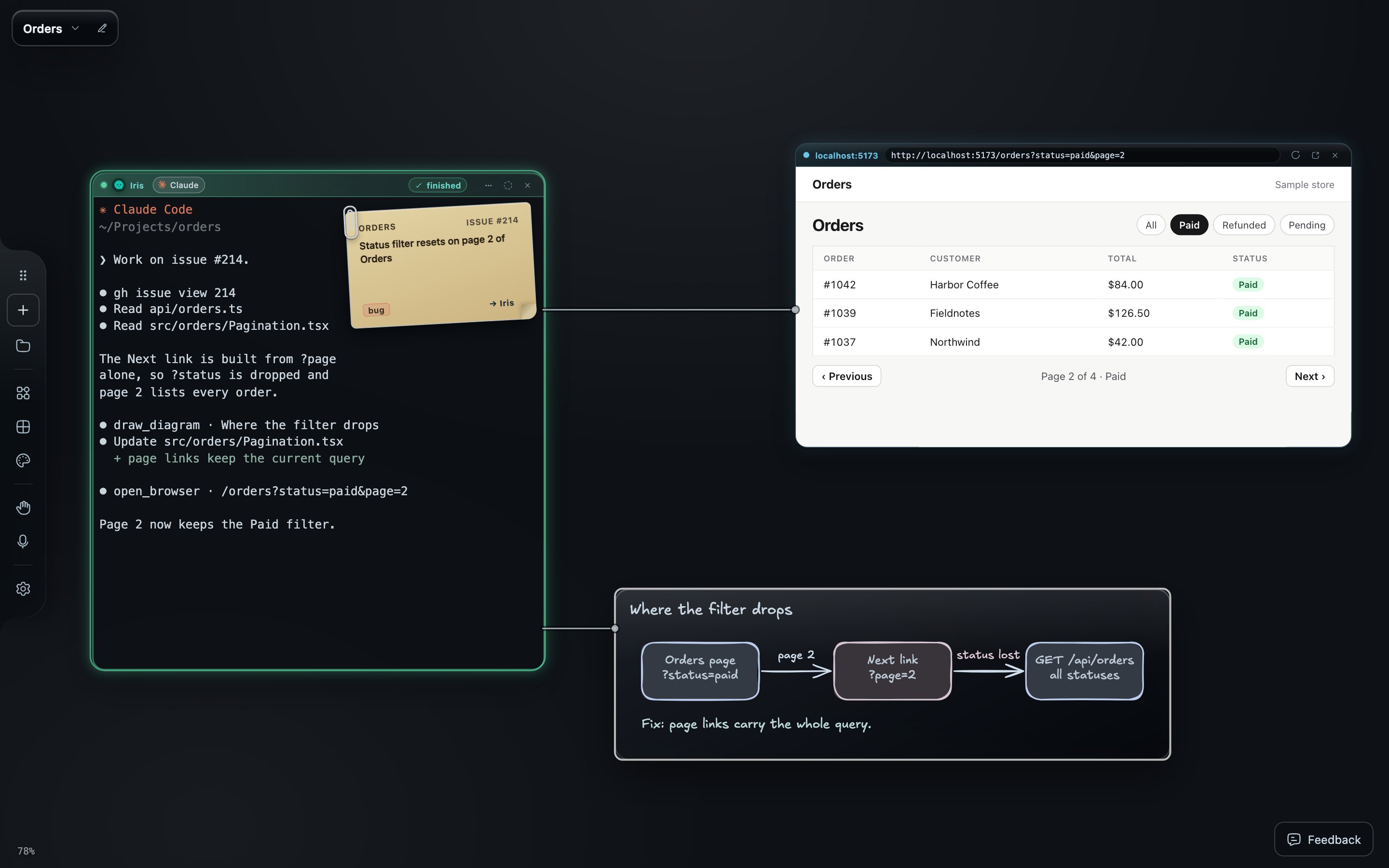
The preview and the diagram dragged away from Iris; hovering her window draws the origin lines back to both. Captured from the app with scripted terminal output.
When you come back to the task, the lines tell you where each piece came from.
Why an infinite canvas instead of panes or tabs?
You might begin with one agent and a question. During the investigation, you add a diagram. During implementation, you open a preview. Before accepting the change, you bring in a reviewer.
A canvas gives those additions somewhere to go. You can make room for a wide diagram, keep a browser large enough to inspect, or focus on a terminal while writing a detailed instruction. Zooming out brings the surrounding work back into view.
Panes and tabs ask you to choose a layout before you know the task. A task does not arrive with a fixed number of panels or a predictable shape. I wanted its workspace to grow as you discover what the work requires.
Doesn't an infinite canvas get messy?
It can. Windows end up far apart, and zooming out too far makes everything unreadable. Giving people space also means helping them keep it useful. For a quick question in one terminal, there may be little reason to arrange anything at all; the canvas earns its place when several related things need to stay in view.
So the canvas has some restraint built in:
- New windows don't rearrange anything. A launch takes free space beside what is already on screen. Windows you moved or resized keep their place and size.
- Tidy is explicit. The Tidy windows button in the launcher packs the workspace when you ask, keeping current sizes (⌘-click resizes to fit). It seats each diagram or preview beside the agent that made it and keeps a handoff run together.
- States are visible. Each agent window shows a working or finished badge in its header, so you can see which one needs you without reading its output.
- Projects stay apart. Each workspace has its own folder, agents, layout and backdrop.
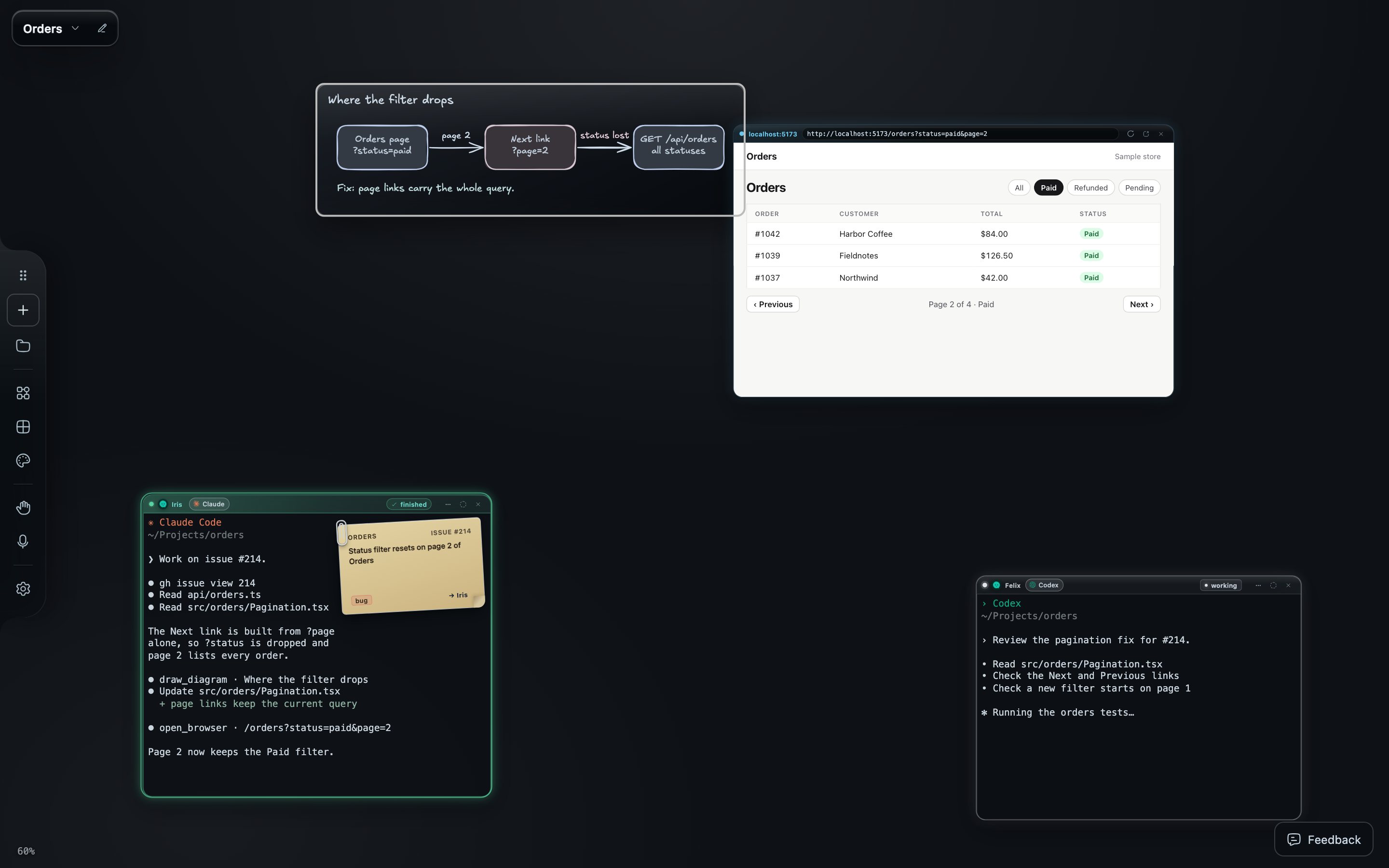
Before: the same task after some dragging, with a second agent, Felix, reviewing the fix.
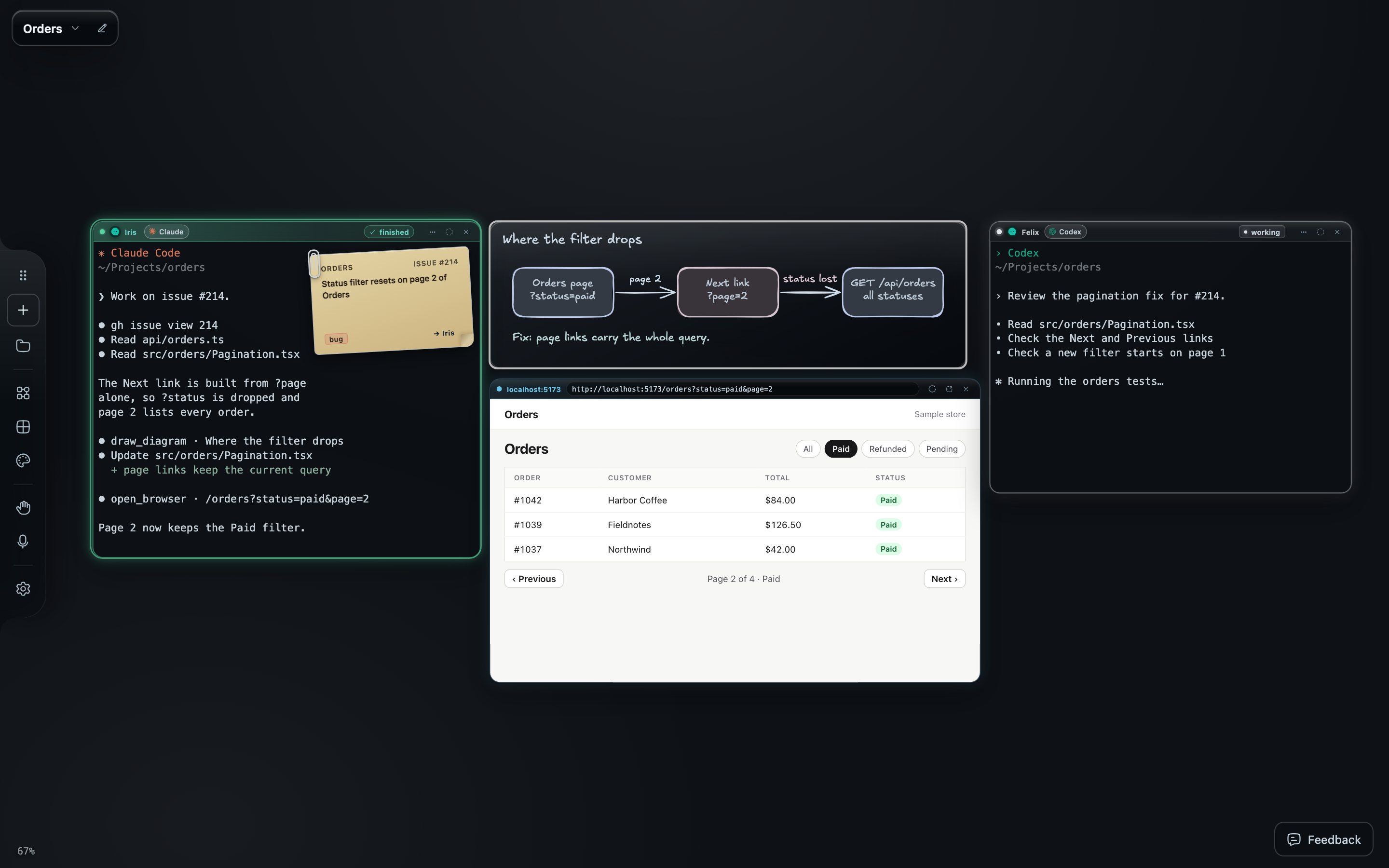
After Tidy windows: the diagram and preview sit beside the agent that made them. Both captured from the app with scripted terminal output; Iris and Felix are AI agent sessions.
The same restraint applies to the work itself. Opening more agents helps when each has a clear assignment. A handoff needs enough context for the receiving agent to continue. A finished badge still leaves a result for you to review. I want the canvas to support those decisions: who is doing the work, what they were asked to do and what they produced. Then you choose the next step.
There is also a practical difference between saving the workspace and keeping an agent running. The canvas, notes and task history survive a restart. Standard agent sessions run in the local server: they keep working while the canvas is hidden and end when that server stops, as it does when the Mac restarts. A familiar layout when you return does not mean every process is still running.
Where should you start?
You do not need a crew to get value from this. Start with one agent, one issue and one preview. Keep them together through the change, and add a diagram or a second agent when the task calls for one. Three walkthroughs cover the next steps:
- When you have planned a change with one agent and want another to build it: hand off a task from Claude Code to Codex with its acceptance criteria.
- When several sessions ran while you were away and you need to know which one needs you: keep track of multiple AI coding agent sessions with states and recaps.
- When an agent says a fix is done and you want an independent check: have a second AI agent review the code changes.
The Starkomand features in this walkthrough
- Drop a GitHub issue on an agent window to assign it; the note stays pinned to the work.
- Agent-drawn, editable diagrams beside the terminal, tethered to their agent by an origin line.
- Browser previews beside the agent that built the page.
- Handoff wires that show which agent works for which.
- Agent windows that light up as they finish.
- Tidy windows and one workspace per project.
- What keeps running when you hide the canvas or restart the Mac.
That is the workspace I am building: a place where the context around a coding agent stays close enough to use. Try Starkomand free for 3 days on a task you are already working on. If the canvas makes that task harder to follow, tell me where it gets in your way; there is a Feedback button in the app.