
How to keep track of multiple AI coding agent sessions
Back from a break with agents still running? Keep track of multiple AI coding agent sessions with window states, spoken notices and live window backs.
You leave for a meeting with two agents running. One is investigating API timeouts. The other is changing a mobile navigation menu. When you come back, both terminals have moved on without you, and you need to decide which one needs you first.
That is the everyday version of a common question: how do you keep track of multiple AI coding agent sessions without rereading every terminal? I build Starkomand around that question, so this walkthrough uses it, and each section names the control in the app that handles that step. The screenshots show real Claude Code and Codex sessions, working in two small demo repositories I set up for this post.
Why terminal tabs make this hard
A terminal is a good place to run an agent and a poor place to catch up on one. The output scrolls, so the finding you need can sit far above the prompt. Tabs look alike, so two tabs named after the same CLI don't say which repository each one is in. And a finished agent looks much like a stuck one. Both are quiet, and you only learn which is which by reading.
So catching up is really three questions. Which session finished, and which is still going? Is either one waiting on me? What did each one actually do?
Leave each agent a bounded assignment
Catching up starts before you leave. An agent with a clear stopping point is much easier to read later than one told to keep going.
Start each agent in its own repository. The Launch folder button in the launcher sets where new agents start; windows that are already open keep their folder. Put the API agent on the left and the website agent on the right, and give each a scope it can finish.
The API agent gets an investigation:
Investigate why retried requests time out immediately. Trace timeout creation and reuse across attempts. Do not edit files. Report the likely cause, the relevant files, and a regression test we could use to check a fix. Then ask me whether to apply the fix.
The website agent gets an implementation:
Below 720px, collapse the navigation behind the existing menu button. Close the menu after route selection and return keyboard focus to the button when the menu is dismissed. Preserve desktop navigation. Run the relevant checks and leave the result ready for browser review.
Two short jobs can share one workspace, which keeps both in a single glance. When a project grows to several windows, previews and notes, give it its own workspace. Each workspace keeps its own launch folder, layout and backdrop, and the left and right arrow keys switch between them when no window is selected.
Separate windows do not separate files. If two agents will edit the same repository, give each its own Git worktree before you start them.
Come back and see which agent needs you
Press Option–Command–K from any app to bring Starkomand forward. Press it again to hide it.
Before reading a line of output, read the window headers. An agent window shows working while a turn runs, and finished with a green frame once the agent goes quiet after your prompt. The green stays until you click into the window or type, so it also marks what you have not looked at yet. A turn that ends in an error shows failed. An agent that ended its turn on a question or stopped at a permission prompt turns amber and says Waiting on your answer or Waiting on you.
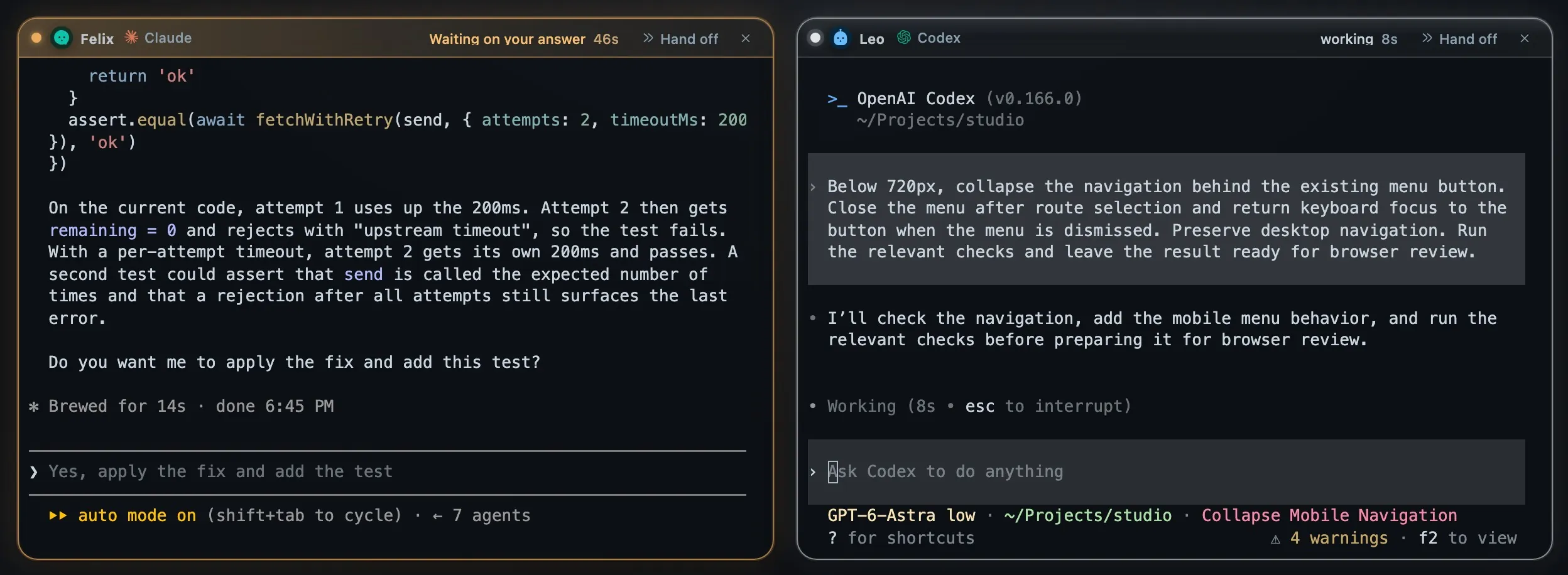
Real Claude Code and Codex sessions. The repositories are small demos I set up for this post, and the timeout bug was planted.
Here the order decides itself: Felix, the API investigation, is waiting on you, and Leo is still working on the navigation change.
Two more controls cover the time you spend away from the canvas:
- Announce finishes and questions, under Settings → Voice & speech → Spoken updates, says the agent's name and workspace when a turn finishes, and speaks up when an agent has a question, even while the canvas is hidden. It is on by default; switch it off there if you prefer silence.
- An agent that stops on a question is not finished. It is waiting for you. A button with a count appears in the launcher when agents need you, and clicking it opens the Needs you list. Command–Shift–J jumps to the next one, across workspaces.
Turn the windows over instead of reading transcripts
States tell you where to look. The back of a window tells you what that agent was doing. Click empty canvas so no terminal has the keyboard, then tap Space: every window turns over and stays that way until you tap Space again or press Escape. Hold Space instead for a quick look that ends when you let go.
A back is built to read in a glance. It shows the name the CLI gave the conversation, the current state, and the agent's own closing line. If that line was a question, it appears under an amber Waiting on your answer. At the bottom are the files the agent changed, the dev servers it started and the pull requests it opened.
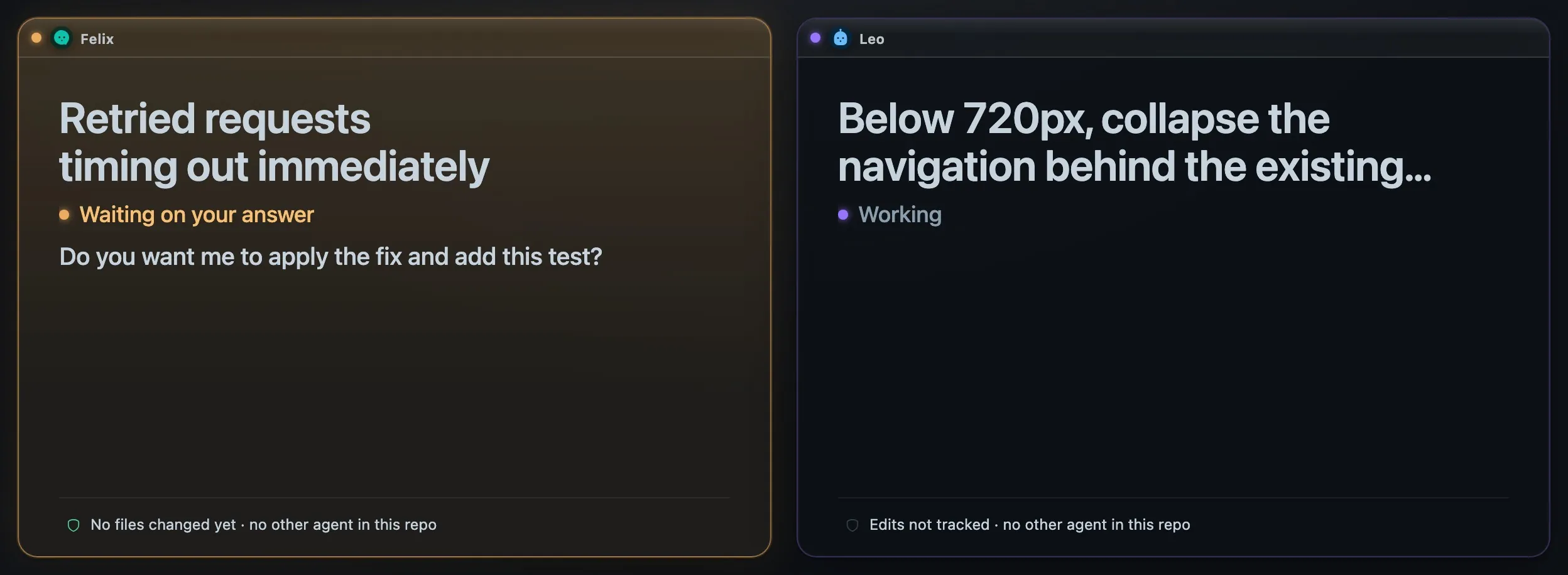
The same two windows with Space tapped, from the same real sessions.
None of this calls a model, and it stays on your Mac. Claude windows need no setup. For Codex, switch on Follow Codex windows under Settings → Privacy → Agent activity, then open a new Codex window and choose Trust all when Codex asks about the hooks. With the switch off, as in the screenshot, a Codex back still shows its state but not its closing line or the files it changed.
What happens when new work arrives while you read
A saved summary can be accurate about five minutes ago and still send you back to the wrong conversation. A back avoids that because it follows what the window is doing now. I tested this with the windows left turned over: when I answered Felix, the amber question was replaced in under a second by Working and my new request.
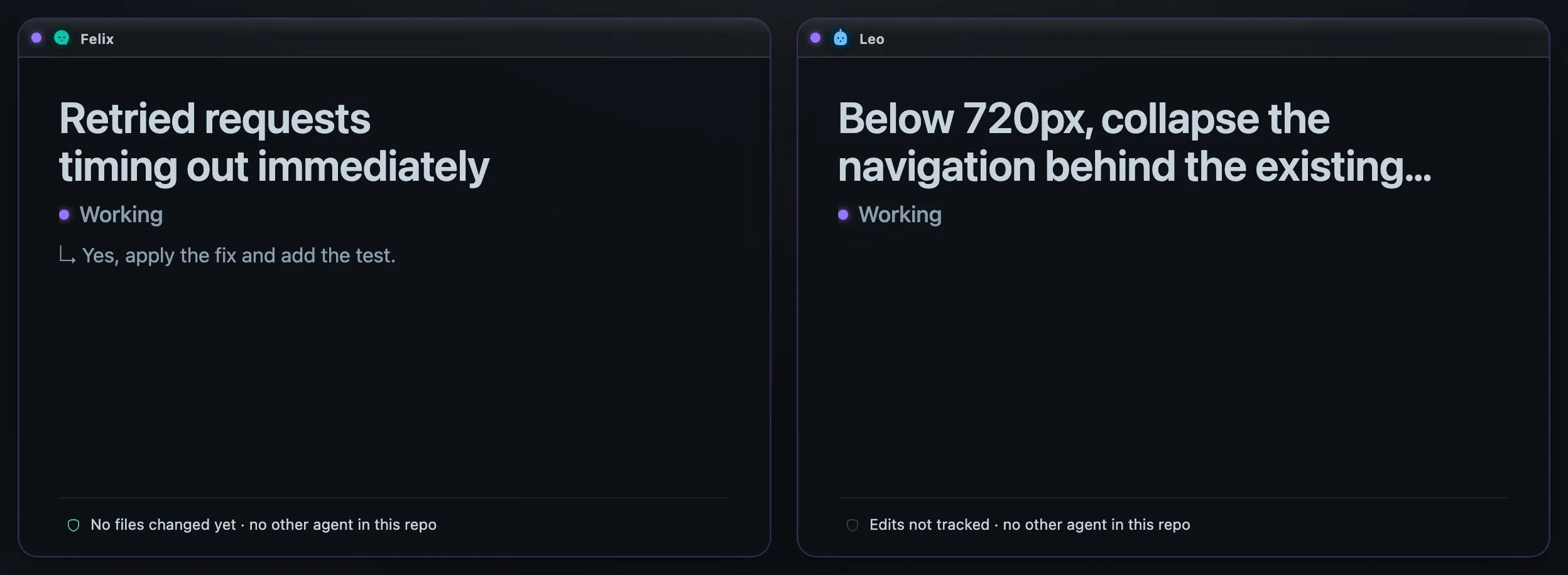
Felix's back after the new instruction. Nothing was flipped or reloaded.
Ask for a written summary when you need one
Sometimes a glance is not enough, such as when you owe someone a status update. Press Command–K and choose Summarize whole canvas or Summarize selected agents. The panel sorts the result into Work & findings, Checks reported and Still open, and each bullet names its agent.
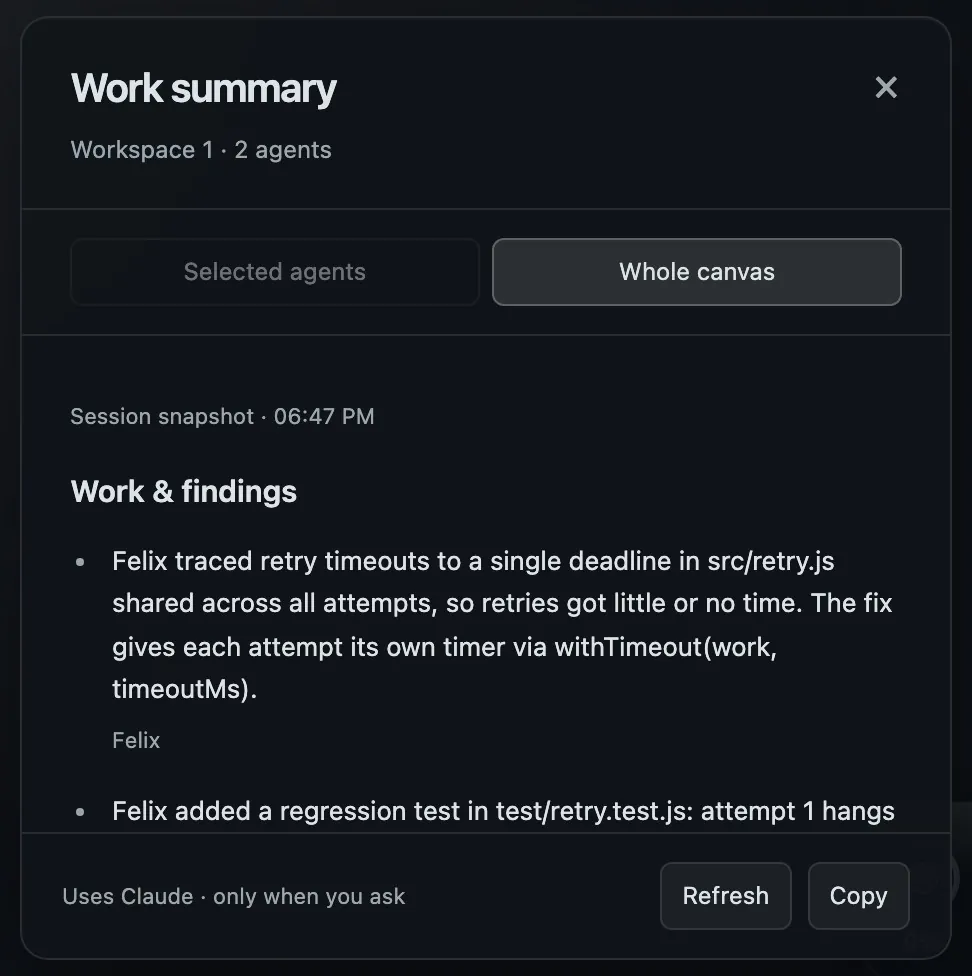
A real summary of the two sessions, written by Claude from their transcripts.
This is the one step in this walkthrough where a model reads your sessions, and it runs only when you ask. You choose the writer under Settings → Privacy → Work summaries → Written by:
- Claude or Codex, run through the CLI you already have installed and signed in;
- Custom model, any OpenAI-compatible endpoint, including one running on your Mac, in which case summaries stay on the Mac;
- Off, which sends nothing anywhere.
Until you choose, Starkomand uses the Claude CLI if it finds one on your Mac, otherwise Codex, and keeps summaries off when it finds neither. What goes out is the recorded transcript of each session you chose, cut to about 16,500 characters per session at most. The panel tells you when it had to shorten a history.
A summary is a snapshot, and it says so: its first line gives the time, as in Session snapshot · 06:47 PM. It does not update or warn you when an agent moves on. I sent Felix another instruction with the panel open, and the summary stayed exactly as it was. Press Refresh for a new one, and turn the windows over to see where things stand now.
Treat a summary as a pointer, not a verdict. A model wrote it from a transcript, and its checks are what the agents reported, not something Starkomand verified. Read the terminal before you act on it.
Take one next action per project
For the API investigation, check the cause and the proposed regression test against the code. If you agree, answer Felix's question in the same window, or hand the agreed implementation to a second agent with a written brief.
For the navigation change, let the tests finish, then look at the result. Ask the agent to open the local app: agents in Starkomand can open a browser preview window on the canvas beside their terminal. Check opening, dismissal, route selection and focus return at a narrow width, and compare what you see with the original request. If you want an independent check first, ask a second agent to review the change.
What stays alive when you leave
Hiding Starkomand, with Option–Command–K or by closing its window, stops nothing. Agents keep running while the local server runs, and spoken updates still arrive.
Quitting is a choice. Command–Q asks "Keep agents running after you quit?" Keep Agents Running closes the app and leaves the background server running your agents and terminals. Quit Completely stops them across every workspace. Either way, your workspaces and windows are saved and return when you reopen the app.
A saved canvas is not a running agent. Restarting the Mac ends live sessions but keeps the canvas, notes and task history. If one job must outlive the app itself, Command-click or right-click its row in the launch menu to run it as a persistent agent in Herdr, a local terminal runtime; persistent agents keep running with either quit choice.
The Starkomand features in this walkthrough
- One workspace per project, with its own crew, layout and backdrop
- Agent windows that light up as they finish
- What stays on your Mac
- Browser previews beside the agent that built the page
- Whether agents keep running when you leave
For why all of this lives on a canvas rather than in tabs, read why I put coding agents on an infinite canvas.
Try it with two jobs you already have in progress. Give each a stopping point, start the free 3-day trial, and use your next meeting to see whether you come back with one clear action per project.